
FAQ
31.08.26
New ratioparts website:
everything you need to know
Your ratioparts online shop is evolving!
To help you quickly find your way around, we’ve gathered the main changes regarding your orders, product pages and customer account in one place.
Find out where to access your usual features, what has changed and how to use the new tools available to you.
GO TO MY ACCOUNTLooking for specific information?
Go directly to the topic you’re interested in.
- 01-Login & customer account
First login, email address and user access - 02-Products & pricing
Sales units, quantity discounts, availability and related products - 03-Item comments
Add and find a comment on an item - 04-Placing an order
CSV import, delivery, reference and order confirmation - 05-Orders & documents
Orders, invoices, delivery notes and backorders - 06-Order lists
Create, manage and share your lists - 07-My addresses
View or add a delivery address
Login & customer account
How do I log in to the new online shop?
You now log in using your personal email address. Your previous customer number can no longer be used as your username.
How do I log in for the first time?
When logging in for the first time, you will need to set a new password.
1. On the login page, click "Forgot password?".
2. Enter the email address registered with your account.
3. You will receive an email with a link allowing you to set a new password.
Each online shop login requires its own unique email address.
Several personal user accounts can be created for the same company.
Products & pricing
How do sales units work?
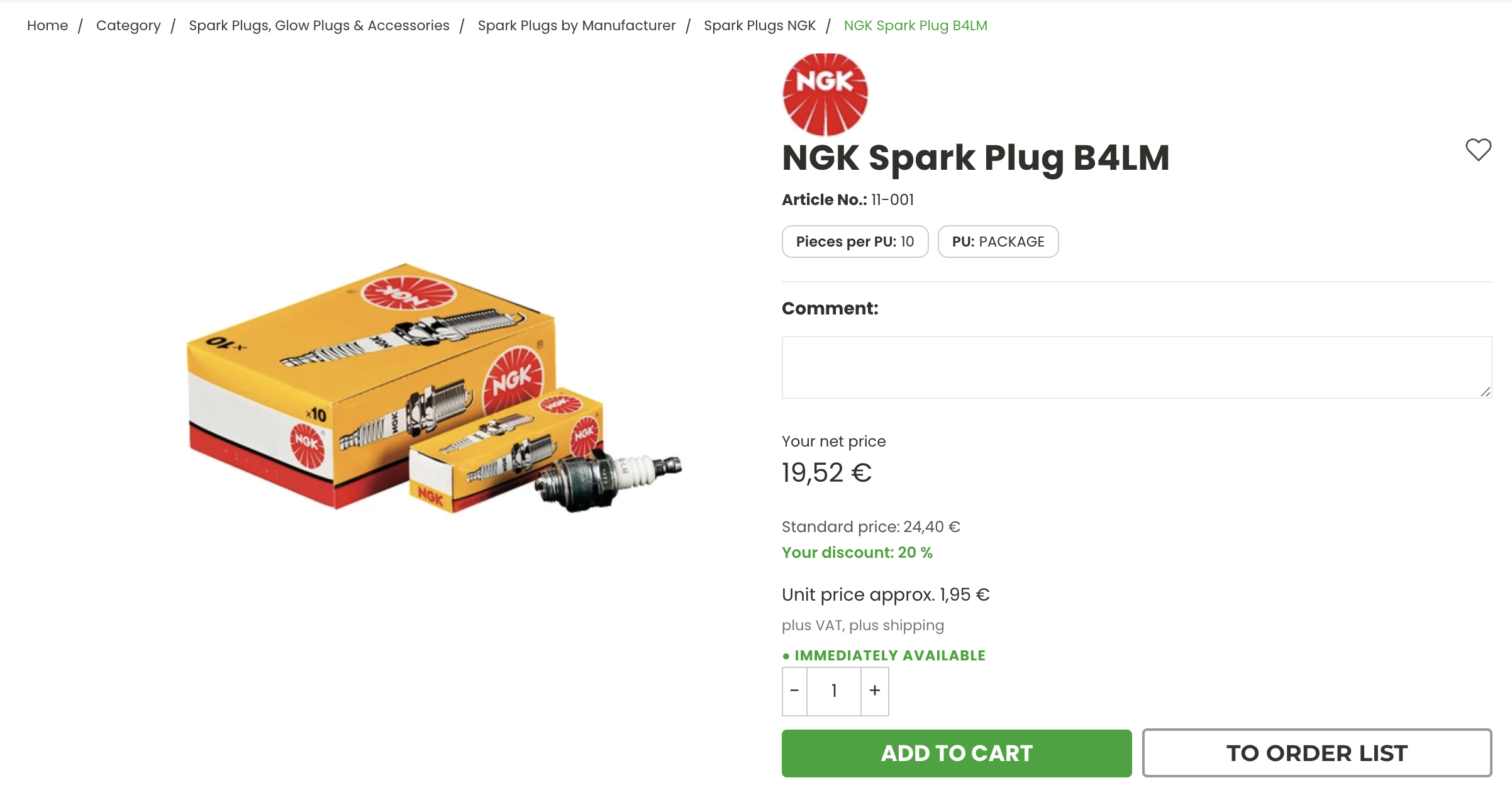
Sales units are now displayed differently to make it easier to identify a product’s packaging.
When an item is sold by box, pack or another sales unit, you now add the number of sales units you need to your cart rather than the total number of individual pieces.
If an item comes in a box of 10 pieces, a quantity of 1 means 1 box containing 10 pieces.
When the sales unit is not “piece”, the calculated unit price is also displayed. This makes it easier to compare prices.
Where can I find quantity discounts?
If quantity discounts are available for an item, this is shown directly next to the price.
On desktop, you can view the different price levels by hovering over the pricing information. On tablets and mobile devices, open the quantity discounts by tapping them.
What do the different availability statuses mean?
The current availability of an item is displayed directly on the product page.
Available immediately
The item is in stock and can be ordered.
Available in week XX
An estimated delivery date is available for the item.
Out of stock – Please contact us
There is currently no confirmed delivery date. The item can still be ordered.
Special order – No returns
The item is ordered especially for you and cannot be returned.
Direct sales!
Please contact us to place your order.
Discontinued item
The item is no longer available for standard ordering.
Where can I find spare parts and related products?
Looking for a spare part, an alternative product or a complementary item?
Related products can now be found directly at the bottom of the product page in a dedicated carousel.
VIEW PRODUCTS →Item comments
How do I add a comment to an item?
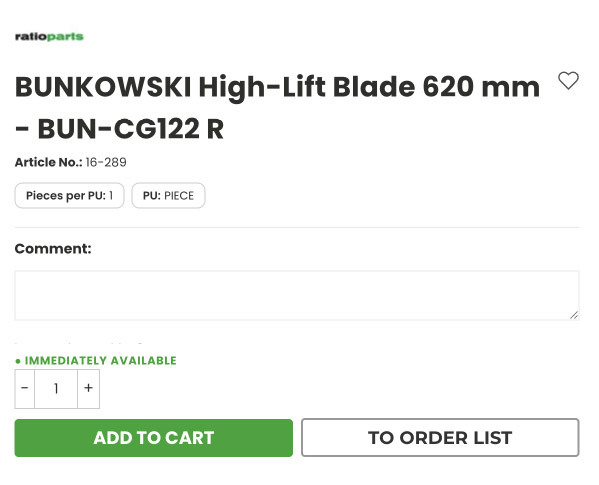
An item-specific comment must now be entered directly on the product page before adding the item to your cart.
1. Enter your comment in the dedicated field.
2. Add the item to your cart.
3. The comment is automatically added to your cart along with the item.
Can I edit my comment in the cart?
No. Once the item has been added to the cart, the comment can no longer be changed.
If you need to change it, you must remove the item from the cart, enter the new comment on the product page and then add the item again.
The comment will then appear in your cart, your order and your order confirmation.
Placing an order
How do I place an order using a CSV file?
The ordering process has changed in your new online shop.
If you want to place an order using a CSV file, you can no longer import the file from your cart.
CSV import is now available through Quick Order in your customer account.
1. Open your customer account.
2. Select Quick Order.
3. Import your CSV file.
4. Check your items and quantities before continuing with your order.
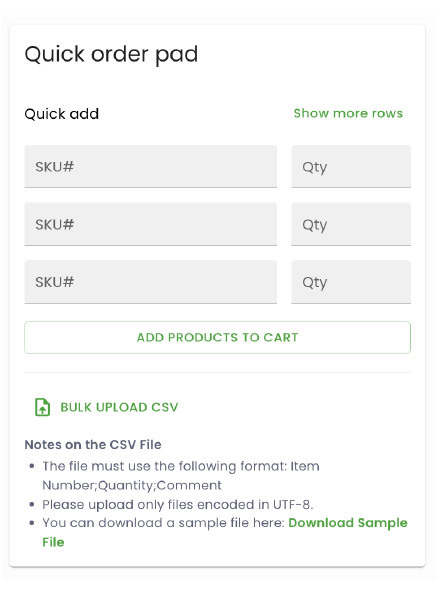
CSV import is no longer available from the cart. Please use Quick Order instead.
How do I complete my order?
Once you have added your items to the cart, check your selection and proceed with your order.
Check your delivery address
Select the address where your order should be delivered.
Select your shipping method
Choose your preferred option from the available shipping methods.
Review your order
Check your items, quantities and order details.
Confirm your order
Check everything one last time, then submit your order.
Can I enter my own order number?
Yes. During checkout, you can enter your own order number or internal reference in the dedicated field.
Your order number / Reference number (optional)
Can I add a new delivery address during checkout?
No. Only delivery addresses already registered in our system can be selected in the online shop.
If you need a new delivery address, please contact our Customer Service team.
CONTACT CUSTOMER SERVICE →Why has my order number changed?
With the launch of your new online shop, the numbering of your online orders is also changing.
New online shop orders now follow a new numbering sequence. When your order is processed, the prefix “WS-” is added.
This does not affect the processing of your order.
Orders & documents
Where can I find my previous orders?
Different views are available in your customer account:
Online shop orders placed by all users within your company
Online shop orders and other ERP orders from your company.
Where can I find invoices, credit notes and delivery notes?
In your customer account, you can access your invoices, credit notes and delivery notes.
Available documents can be opened directly as PDF files.
VIEW MY DOCUMENTS →Can I track my delivery?
Yes. When tracking is available for your shipment, you will find the corresponding tracking link with your delivery note.
Where can I see outstanding delivery quantities?
Under “Backorders”, you can find items that have not yet been fully delivered.
You can view the outstanding quantity and, when available, the expected delivery week.
My shopping list
Where can I find my shopping list?
Your shopping list is available directly in your customer account.
It is ideal for items you regularly need or for preparing shared orders.
How do I create a new shoppinf list?
1. Open the shopping List section.
2. Create a new list.
3. Give your list a name.
4. Add the items you need.
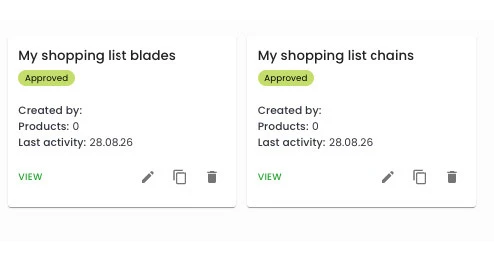
Order lists are shared within your company. Other users linked to your company can also view and use them.
What is the difference between an order list and a wish list?
Shopping list
It is shared within your company and can be used by the users linked to your online shop account.
Wishlist
It is personal, linked to your individual user account and not visible to your colleagues.
My addresses
Where can I find my registered addresses?
Your addresses are available in your customer account under Addresses.
Here you can view the addresses currently registered with your account.
VIEW MY ADDRESSES →How do I add a new delivery address?
A new delivery address cannot be added directly through your customer account.
Would you like to add or use a new address? Please contact our Customer Service team. Our team will be happy to help.
CONTACT CUSTOMER SERVICENeed help?
Our Customer Service team is happy to help – for example with questions about your login, a new delivery address or using the new online shop.